So, you’re looking for the best virtual machine software in 2026? It’s a common need these days, whether you’re a Mac user who needs to run some Windows-only apps or a developer testing different operating systems. The good news is, there are plenty of options out there. We’ve sifted through them to give you a clear picture of what’s worth your time and money. Let’s get into it.
Table of Contents
Key Takeaways
- Parallels Desktop is often a top choice for Mac users due to its ease of use and performance.
- VMware Fusion offers a free option for personal use, making it accessible for many.
- Oracle VirtualBox is a free, open-source tool that’s great for testing and development.
- Microsoft Hyper-V is a solid choice for Windows users, especially in business environments.
- For those looking beyond the big names, options like Proxmox VE and XCP-ng provide powerful open-source alternatives.
1. Parallels Desktop
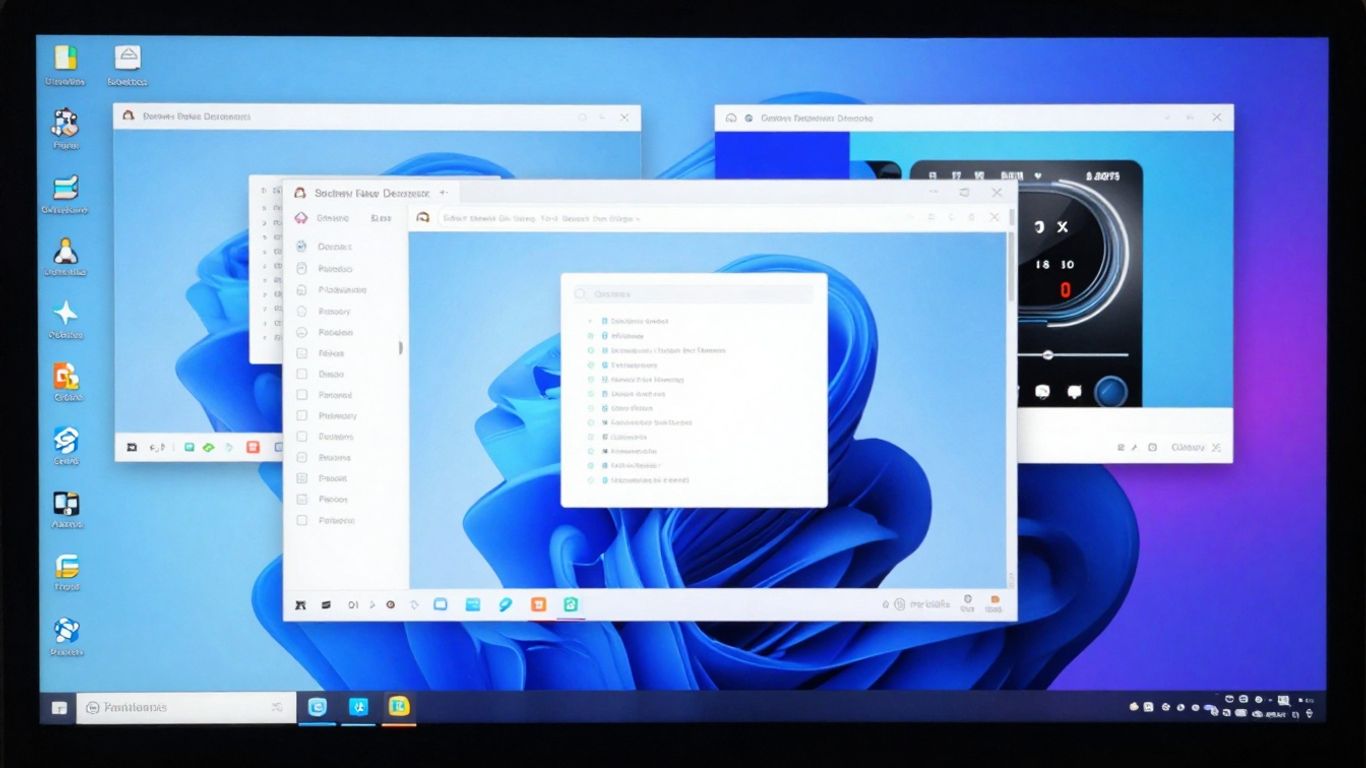
If you’re a Mac user looking to run other operating systems, Parallels Desktop is a really solid choice. It’s known for being fast and reliable, especially when you’re trying to get Windows or Linux up and running on your Mac, whether it’s an Apple silicon or Intel model.

One of the neatest features is its ‘Rollback Mode’. Think of it like a save point for your virtual machine. You can mess around with settings or install software, and if something goes wrong or you just want to go back to how it was, you can just roll back to a previous state without any permanent changes. This is super handy if you’re testing things out and don’t want to mess up your main system.
Parallels Desktop really shines for everyday Mac users who need to run Windows apps alongside their Mac applications without a hitch. You can even make Windows apps appear as if they’re native Mac apps, putting them right in your Dock. It makes switching between operating systems feel pretty natural.
Here’s a quick look at what it offers:
- Runs ARM-based Windows and Linux on Macs with Apple silicon.
- Offers good graphics performance, even for some gaming.
- Allows easy file sharing between your Mac and the virtual machine.
- Includes a ‘Coherence mode’ for integrating guest OS apps into your macOS desktop.
While it’s a paid product, with subscription options and a perpetual license available, the performance and ease of use often justify the cost for many users. The recent updates have also added some AI-focused tools for developers, which is an interesting direction.
Keep in mind that running virtual machines can take up a good chunk of your computer’s memory and processing power. It’s always a good idea to check your Mac’s specs to make sure it can handle the workload you plan to throw at it.
2. VMware Fusion
VMware Fusion has been a long-time player in the Mac virtualization scene, often going head-to-head with Parallels Desktop. While it used to be a very close race, VMware has seemed to slow down its development pace a bit in recent years. You might even have to search a little to find Fusion on their website these days.
When version 13 came out in late 2022, it added support for running ARM versions of Windows on Macs with M1 and M2 chips. Just like with Parallels, you can’t run the standard x86 version of Windows on these newer Macs. Getting Windows on ARM installed with Fusion isn’t quite as straightforward as with its main competitor; VMware points users toward buying a license from Microsoft, which can be tricky since it’s not readily available for individual buyers.
Later updates, like 13.5 in October 2023, brought better graphics support with DirectX 11 and made installing Windows 11 on ARM a bit simpler with a "Get Windows" button. The 13.6 update in September 2024 added command-line tools and support for more guest operating systems.
VMware Fusion Pro is now free for personal use, which is a pretty big deal. You just need to sign up for a VMware account to download it. This makes it a really attractive option if you’re a student or just need to run a different OS on your Mac for personal projects without spending any money.
Here’s a quick look at what Fusion Pro offers:
- Free for personal and non-commercial use: This is a huge plus for many users.
- Works on both Apple silicon and Intel Macs: Flexibility is key, and Fusion provides it.
- Supports various guest operating systems: Run Windows, Linux, or even older macOS versions.
- Advanced networking and management features: Good for more technical users or small businesses.
While Fusion might not always be the absolute fastest or the easiest to set up compared to some rivals, its free Pro version for personal use is a compelling reason to consider it. It offers a lot of control and compatibility for running different operating systems on your Mac.
If you’re looking to run Windows apps, test different operating systems, or develop software that needs to work across platforms, VMware Fusion Pro is definitely worth checking out, especially since you can try it without any cost for personal use.
3. Oracle VirtualBox
Oracle VirtualBox has been around for a while, and it’s a pretty solid choice, especially if you’re looking for something free. It works on Windows, Mac, and Linux, which is handy. You can run different operating systems inside your main one, like having a Windows machine on your Mac, or vice versa. It’s great for testing software or just messing around with different operating systems without needing a separate computer.
The biggest draw for VirtualBox is that it’s free and open-source. This makes it super accessible for students, hobbyists, or anyone who just wants to try out another OS without spending money. It supports a lot of different computer setups, which is a plus.
However, it’s not always the smoothest ride. Performance, especially for graphics-heavy stuff or the latest games, isn’t quite as good as some of the paid options out there. And if you’re on a newer Mac with Apple Silicon (like the M1 or M2 chips), running Windows or macOS guests can be a bit tricky, and sometimes things like file sharing or the clipboard don’t work as expected on these ARM setups. It’s also worth noting that while the free version is great for personal use, businesses might need to look at the paid enterprise version, which can get pricey.
Here’s a quick look at what it offers:
- Cross-Platform Compatibility: Runs on Windows, macOS, and Linux hosts.
- Guest OS Support: Supports a wide range of Windows, Linux, and older macOS versions as guest operating systems.
- Basic Features: Includes drag-and-drop file sharing and shared clipboard functionality between host and guest (though sometimes with limitations on ARM).
- Free for Personal Use: No cost for individuals and educational purposes.
Setting up a new virtual machine in VirtualBox can sometimes feel a bit like assembling flat-pack furniture without clear instructions. While they’ve added a startup wizard to make things simpler, you might still find yourself scratching your head if you’re not already familiar with the technical terms. It’s definitely a program that benefits from a bit of patience and maybe a quick look at the user forums when you get stuck.
While it might not be the top pick for demanding professional work or hardcore gaming, VirtualBox remains a strong contender for general use, learning, and experimentation. It’s a capable tool that gets the job done without costing you a dime.
4. Microsoft Hyper-V
If your IT setup is already deep in the Microsoft ecosystem, then Hyper-V is probably a name you’re familiar with. It’s a Type-1 hypervisor that comes built right into Windows Server, which is pretty convenient. This means you can run both Windows and Linux virtual machines on it, and it packs features like live migration and high availability, which are pretty standard these days for keeping things running smoothly. For security, it even has something called Shielded VMs, which adds an extra layer of protection.
What’s really nice is how well it plays with other Microsoft tools. Think Active Directory and PowerShell – if you’re already using those, Hyper-V fits right in. It also has a built-in disaster recovery option called Hyper-V Replica. Plus, it works well with Azure, so if you’re thinking about hybrid cloud stuff, it’s a natural fit for things like backups or disaster recovery.
Here’s a quick look at what makes it stand out:
- Tight integration with Microsoft products like Active Directory and System Center.
- Robust virtual networking and storage capabilities.
- Good hybrid cloud support, especially with Azure.
- Built-in security features like Shielded VMs.
For businesses that are heavily invested in Windows Server, Hyper-V presents a compelling option. Its inclusion with the server OS means there are no extra hypervisor license costs to worry about, which can be a significant saving. This makes it particularly attractive for small to medium-sized businesses and enterprises looking to virtualize their Windows-based workloads without adding complexity or unexpected expenses. The familiarity for Windows administrators also means a quicker adoption curve.
When it comes to cost, Hyper-V is included with Windows Server. The Standard edition lets you run two virtual machines per host, while the Datacenter edition offers unlimited VMs. This licensing model can be a big win if you’re already a Windows shop. While it might not have the same breadth of third-party integrations as some other solutions, its strengths in the Microsoft world are undeniable. It’s a solid choice for organizations looking to consolidate costs and simplify their virtualization strategy within a Windows environment.
5. Proxmox VE
If you’re looking for a flexible virtualization solution that doesn’t come with a hefty price tag, Proxmox VE is definitely worth checking out. This platform is built on Debian Linux and brings together KVM virtual machines and LXC containers into one easy-to-use web interface. It’s got all the enterprise-level features you’d expect, like live migration, high availability, and backup scheduling, all without any extra licensing fees. Storage options are pretty flexible too, with built-in support for things like ZFS and Ceph.
Proxmox VE really shines when it comes to cost savings and flexibility. Many businesses find it a great alternative to more expensive options, especially since all features are included from the start. You can manage everything from a single dashboard, and its REST API makes automating tasks pretty straightforward. It’s a solid choice for teams that want a lot of control over their setup and are comfortable with a strong open-source community.
Here’s a quick look at what you get:
- An intuitive web interface for managing both VMs and containers.
- Features like clustering, live migration, and high availability are built right in.
- Integrated storage options, including Ceph, and straightforward backup scheduling.
It’s free to use, though they do offer paid support subscriptions if you need that extra layer of help. This approach can save organizations a significant amount of money compared to traditional licensing models. It’s a platform that scales well, from small labs to larger, multi-host clusters, and it’s known for its stability, especially when paired with storage solutions like Ceph. You can find more details about this open-source platform on their official website.
Proxmox VE is a powerful option for those who want robust virtualization capabilities without the usual licensing costs. Its integration of KVM and LXC, combined with flexible storage and networking, makes it a versatile choice for various IT environments. The active community and optional support plans provide a good balance of freedom and assistance.
6. XCP-ng
If you’re looking for a powerful, open-source virtualization platform that feels familiar to VMware users but doesn’t come with the hefty price tag, XCP-ng is definitely worth a look. It’s built on the Xen hypervisor and offers a lot of the features you’d expect from commercial solutions, like live migration, high availability, and snapshots. It’s managed through Xen Orchestra, which gives you a clean, browser-based interface that many find quite similar to vCenter.
XCP-ng is a solid choice for both Windows and Linux virtual machines. The community behind it is pretty active, which means regular updates and a good amount of support available through forums and plugins. Plus, it’s API-friendly, so if you’re into automating your infrastructure, this could be a good fit. It’s a great way to get enterprise-level features without getting locked into a specific vendor. Many folks have switched from Proxmox to XCP-ng for their home labs, appreciating its performance and support for features like Windows 11 VMs with TPM 2.0 and Secure Boot emulation.
Here’s a quick rundown of what XCP-ng brings to the table:
- Live Migration (XenMotion): Move running VMs between hosts without downtime.
- High Availability: Automatically restart VMs on another host if a server fails.
- Snapshots: Capture the state of a VM at a specific point in time.
- GPU Virtualization: Support for passing through graphics cards to VMs.
- Xen Orchestra UI: A user-friendly, web-based management console.
One of the biggest draws for XCP-ng is its cost. It’s free to use, with optional paid support available from Vates. This makes it a really attractive alternative for businesses and individuals who need robust virtualization capabilities but are mindful of budget. It’s a strong contender if you want that VMware-like experience without the associated licensing costs.
7. Red Hat OpenShift Virtualization
Red Hat OpenShift Virtualization is an interesting option if you’re already deep into the Red Hat ecosystem. It basically lets you run virtual machines right alongside your containers on the same Kubernetes platform. This is pretty neat for managing hybrid workloads, especially if you’ve got some older applications that aren’t quite ready for a full container makeover.
Think of it as extending your existing OpenShift setup to handle VMs. It builds on KVM, which is a solid hypervisor, and brings in automation through Ansible. The big selling point here is that developers can use the same tools and workflows, like GitOps and CI/CD, for both their containers and their VMs. This can really simplify things for operations teams.
Here’s a quick look at what it offers:
- Unified Management: Control both VMs and containers from the familiar OpenShift web console.
- Hybrid Workload Support: Run Linux and Windows VMs alongside your containerized applications.
- Automation: Automate VM operations using Ansible playbooks.
- Key Features: Includes live migration, high availability, and persistent storage options.
It’s a subscription-based product, and if you’re already using OpenShift or Red Hat Enterprise Linux, it can be quite cost-effective. It’s definitely geared towards enterprises that are looking to consolidate their VM and container management under a single, cloud-native umbrella. For those already invested in Red Hat’s stack, Red Hat OpenShift Virtualization offers a way to modernize their infrastructure without completely ditching their existing VM investments.
Managing virtual machines within a Kubernetes-native environment requires a shift in thinking compared to traditional virtualization platforms. While it offers powerful integration benefits, understanding the underlying Kubernetes concepts is pretty important for effective deployment and maintenance.
8. Nutanix AHV
Nutanix Acropolis Hypervisor, or AHV, is built right into their hyper-converged infrastructure (HCI) platform. Think of it as a Type-1 hypervisor that’s part of a bigger package, all managed through a neat interface called Prism. It’s not a standalone thing you install separately; it comes bundled with Nutanix’s hardware and software.
What’s cool about AHV is how it plays nicely with Nutanix’s own storage and networking. This means you can manage everything – your virtual machines, storage, and network stuff – from one spot. It handles the basics like moving VMs around while they’re running (live migration) and making sure things stay up if a server fails (high availability). Plus, it has backup features built-in, so you don’t always need extra software for that.
One of the big selling points is that AHV doesn’t have its own separate license fees. If you’re already buying into the Nutanix HCI system, the hypervisor is just part of the deal. This can really help cut down on costs, especially if you’re comparing it to other solutions that charge extra for the hypervisor itself.
- Simplified management through the Prism UI.
- Integrated storage, networking, and virtualization.
- No extra hypervisor licensing costs.
- Features like live migration and high availability.
AHV is a solid choice if your organization is already looking at or using hyper-converged infrastructure. It aims to make things less complicated by bringing compute, storage, and virtualization together under one roof, managed from a single console. This can be a big win for IT teams trying to simplify their data center operations and potentially lower their overall expenses.
It’s especially appealing for larger businesses that are refreshing their hardware and want a more integrated, cloud-like experience for managing their virtual environment. While the initial hardware investment for HCI can be significant, the idea is that the long-term management and licensing savings make it worthwhile.
9. UTM
UTM is a pretty interesting option, especially if you’re working with Macs. It’s actually number one on the Mac App Store’s business section right now. You can grab it for $9.99, but here’s the cool part: it’s also open-source. So, there’s a completely free version available on their website if you’re willing to download it directly.
What makes UTM stand out is its flexibility with different Mac processors. Whether you have an older Intel Mac or a newer Apple Silicon one, UTM can handle it. It offers two ways to run other operating systems: virtualization and emulation.
- Virtualization: This is the faster method. On an Intel Mac, you can virtualize Windows (Intel version). On Apple Silicon, you can virtualize Windows on ARM. This is great for general use and better performance.
- Emulation: This is for when virtualization won’t cut it. If you have an Apple Silicon Mac and need to run the older Intel version of Windows, or software that specifically requires it, emulation makes it possible. It’s slower than virtualization, but it opens up compatibility for older apps.
This dual approach is a big deal. While programs like Parallels and VMware focus mostly on virtualization, UTM gives you both. That said, it’s not quite as polished or straightforward as those options. You’ll probably need a bit of technical know-how, especially with disk image files like ISOs or VHDX, to get things set up. It doesn’t hold your hand quite as much as some of the more consumer-friendly choices.
Performance is generally good, though there’s a catch. UTM doesn’t currently support 3D graphics acceleration for Windows VMs. So, if you’re hoping to play many Windows games, you’ll likely be out of luck. But for running business applications, development tools, or just checking out new Windows features, it’s a solid, affordable choice, particularly for developers and tech-savvy users.
Setting up UTM might require a bit more effort than other virtual machine software. You’ll need to be comfortable with concepts like disk images and understand the difference between virtualization and emulation to get the most out of it. It’s a powerful tool, but it leans more towards users who don’t mind a slightly steeper learning curve for greater flexibility.
10. CrossOver
CrossOver is a bit of an interesting one on this list. Instead of a full virtual machine, it uses a compatibility layer, based on WINE, to run Windows applications directly on your Mac. This means you don’t need to install a whole separate operating system just to use a specific Windows program. It’s a neat trick that can save you disk space and setup time.
Think of it like this: you have your Mac, and you want to run, say, a specific Windows game or a piece of business software that just isn’t available for macOS. With CrossOver, you can install that Windows application into what they call a ‘Bottle’. This Bottle acts like a little self-contained environment for the app. You can even set up different Bottles for different apps, or for older software that might need a specific version of Windows to work correctly.
Here’s a quick look at what makes CrossOver stand out:
- No Full Windows Install Needed: You can run Windows apps without the overhead of a complete Windows OS.
- User-Friendly Interface: It’s designed to be simpler than raw WINE, with an installer that lists popular apps.
- Regular Updates: The team behind CrossOver, CodeWeavers, puts out frequent updates, improving compatibility and performance, especially for games.
- Gaming Focus: Recent versions have put a big emphasis on gaming, adding support for new titles and game stores like GOG and Epic.
It’s not perfect, of course. Some apps might still have issues, and on Apple Silicon Macs, it relies on Rosetta, though native support is in the works. It’s definitely worth trying out the 14-day free trial to see if your must-have Windows apps work well before you buy. It’s a solid choice if you need specific Windows software without the hassle of a full VM setup. You can find out more about how it works.
While CrossOver is built on the free WINE project, the commercial version offers a much smoother experience. You get a polished interface, dedicated support, and a curated list of applications that are known to work well. This makes it a more accessible option for many users who might find WINE too complex to configure.
Wrapping Up Your Virtual Machine Journey
So, we’ve looked at a bunch of ways to run different operating systems on your computer. Whether you need to test out some Windows software on your Mac, or maybe run a Linux server on your Windows machine, there’s definitely a tool out there for you. We saw that Parallels is a top pick for Mac users, especially if you want things to run fast and smooth. But don’t forget about options like VirtualBox, which is free and works well for simpler tasks, or VMware for those who need more advanced features. Think about what you’ll be using it for most, how much you want to spend, and what operating system you’re starting with. Picking the right virtual machine software can really make your tech life a lot easier.
Frequently Asked Questions
What is virtual machine software?
Virtual machine software, often called a VM, is like a computer inside your computer. It lets you run a different operating system, like Windows on a Mac or an older version of macOS, without needing a separate machine. This is super handy if you need to use apps that only work on a specific operating system.
Why would I need to run Windows on a Mac?
Even though Macs are great, some popular apps and games are only made for Windows. Running Windows using VM software on your Mac means you can use those Windows-only programs or play those games without buying a whole new computer.
Are there free virtual machine options?
Yes, absolutely! Programs like Oracle VirtualBox are free to use and are great for trying out different operating systems or for school projects. Some other paid options also offer free versions for personal use.
Which VM software is easiest to use?
Parallels Desktop is often praised for being very user-friendly, especially for Mac users. It makes setting up and running another operating system feel quite simple, almost like it’s just another app on your Mac.
Can I run apps without installing a whole new OS?
Some software, like CrossOver, lets you run specific Windows apps directly on your Mac without needing to install the entire Windows operating system. It’s a neat trick if you only need one or two Windows programs.
Is it hard to switch from VMware?
Switching can feel daunting, but many alternatives offer similar features. Some, like Proxmox VE or Microsoft Hyper-V, are great for businesses looking for different pricing or features. It’s a good idea to check out a few options to see which one feels right for your needs.