So, you’ve probably heard about vSphere Cluster Services, or vCLS, and maybe you’ve seen these little virtual machines popping up in your environment. They’re called vCLS VMs, and they’re kind of important for how your clusters work, especially for things like DRS and HA. It can be a bit confusing at first, wondering what they are, why they’re there, and if you should even be messing with them. This article is going to break down what these vCLS VMs are all about, how they’ve changed over time, and what you need to know to manage them without causing yourself a headache.
Table of Contents
Key Takeaways
- vCLS VMs are system-managed components that support cluster services like DRS and HA, ensuring they function even if vCenter Server has issues.
- There are two main versions: External vCLS (older, deployed via OVF) and Embedded vCLS (newer, integrated into ESXi hosts for simpler management).
- vCLS VMs have a very small resource footprint, typically using 1 vCPU, 128MB RAM, and minimal storage, making their overhead negligible.
- These VMs are automatically managed; administrators should avoid direct manipulation, though specific troubleshooting steps like Retreat Mode exist.
- While generally automatic, understanding vCLS VM behavior, especially with Embedded vCLS, is key for smooth cluster operations and potential interoperability with other VMware products.
Understanding vSphere Cluster Services (vCLS)
The Purpose of vCLS VMs
So, what exactly are these vCLS VMs? Think of them as little helpers that VMware put in place to keep your cluster services running smoothly. Before vCLS, things like vSphere DRS (Distributed Resource Scheduler) and vSphere HA (High Availability) were pretty tied to vCenter Server itself. If vCenter had a hiccup, those cluster services could go down with it. That’s not ideal when you’re trying to keep your applications up and running, right?
vCLS was introduced to change that. It basically takes the brains behind DRS and HA and puts them into these separate, small virtual machines. This way, even if vCenter Server itself runs into trouble, the core clustering functions can keep chugging along. This decoupling is the main reason vCLS exists – to make your cluster services more resilient.

Decoupling Clustering Services
Before vCLS, vCenter Server was the central hub for everything related to cluster management. This meant that if vCenter went offline, features like DRS and HA would also become unavailable. This created a single point of failure for critical infrastructure services.
vCLS changes this by moving the operational logic for these services out of vCenter and into dedicated VMs. These vCLS VMs form a distributed system that manages the cluster’s intelligence. This architecture ensures that:
- Cluster services remain active: Even if vCenter Server experiences an outage, DRS and HA can continue to function.
- Improved availability: Workloads benefit from continuous resource management and protection.
- Simplified operations: The management of these services is handled by the vCLS VMs themselves, reducing the direct dependency on vCenter’s uptime for their core functions.
The goal here is to make sure that the services that keep your virtual machines balanced and available don’t go down just because the management server has a temporary issue. It’s like having a backup crew ready to go.
vCLS and vSphere DRS Dependency
For a long time, if you were using vSphere DRS, you absolutely needed vCLS to be up and running. If even one vCLS VM wasn’t available, DRS would stop working. This was a pretty big deal because DRS is a pretty standard feature for managing resources in most vSphere environments.
However, things have changed a bit, especially with newer versions of vSphere. Starting with vSphere 9.0, you can actually disable vCLS on a cluster and still have DRS and HA working just fine. This is a significant shift from earlier versions where the dependency was quite strict. It means you have more flexibility now in how you manage your clusters, especially if you’re running older hosts or have specific operational needs.
Here’s a quick look at the dependency evolution:
| vSphere Version | DRS Dependency on vCLS | Notes |
|---|---|---|
| Prior to vSphere 9.0 | High | DRS would stop if vCLS VMs were unavailable. |
| vSphere 9.0 and later | Low/None | DRS and HA can function independently of vCLS VMs. |
This change makes managing clusters a bit less stressful, as you don’t have to worry as much about the vCLS VMs being the single point of failure for DRS.
Evolution of vCLS: External vs. Embedded
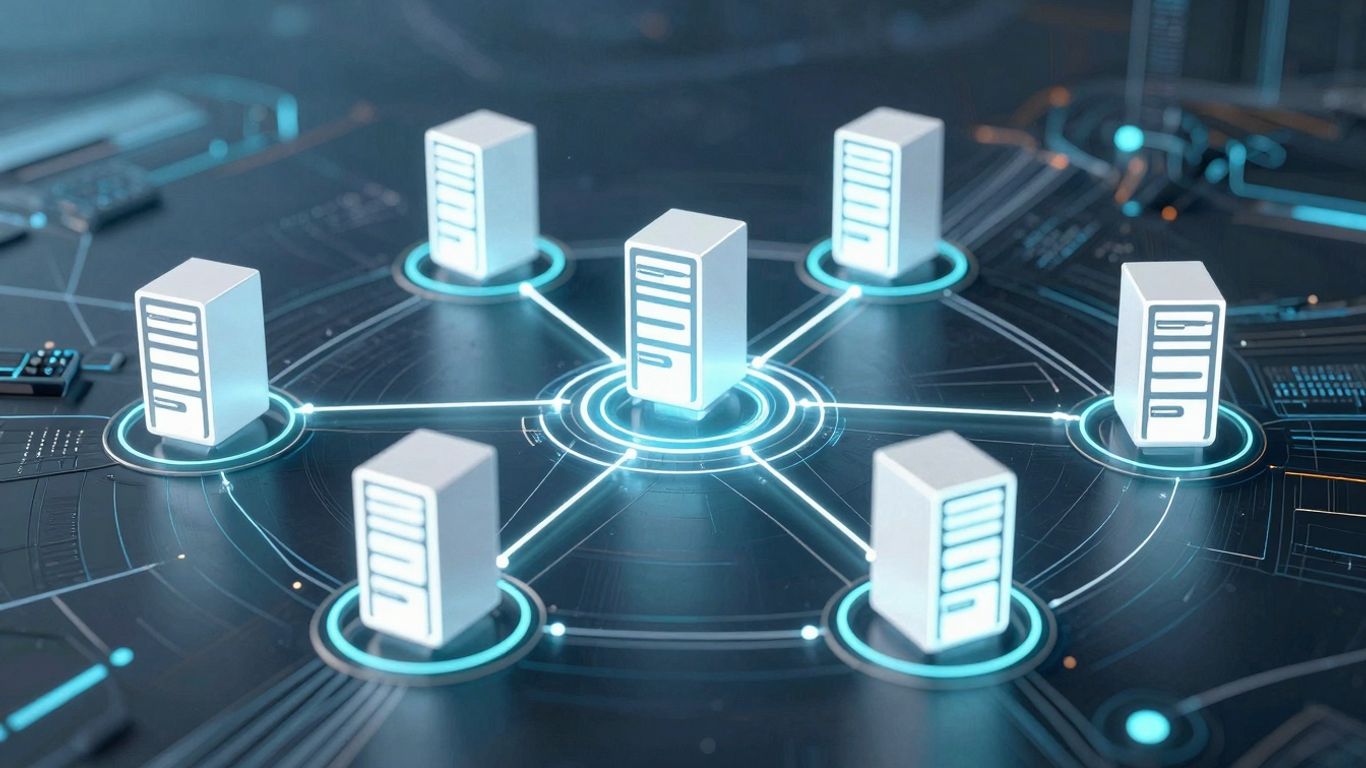
When vSphere Cluster Services (vCLS) first showed up back in vSphere 7.0 Update 1, it was a bit of a different beast. We now call that the ‘External’ version. Think of it like this: vCenter had to go out and grab an OVF image, then use that to build the vCLS virtual machines. This whole process could be a bit slow and sometimes got interrupted, especially if the connection between vCenter and the ESXi hosts wasn’t great, or if there were bandwidth issues. It was functional, but not exactly the slickest operation.
External vCLS: The Original Implementation
The original approach, External vCLS, involved vCenter deploying vCLS VMs using OVF templates. This meant vCenter was responsible for managing the entire lifecycle of these VMs, including their creation and deletion. While it got the job done, it relied on image transfers and could be a bottleneck, particularly in environments with many clusters or during initial deployments. It was the way things were done, and for a while, it worked.
Embedded vCLS: Simplified Management
Fast forward to vSphere 8.0 Update 3, and we get ‘Embedded’ vCLS. This is a pretty big change. Instead of using OVF images, vCLS is now packaged as a container image right on the ESXi host. This makes a huge difference. Creating and getting rid of these vCLS VMs is now just a matter of sending configuration updates. No more uploading big image files! This makes management much quicker and smoother. It’s automatically enabled in clusters that have at least one ESXi 8 Update 3 host and are managed by vCenter 8 Update 3. If there aren’t any compatible hosts, it’ll just fall back to the older External vCLS.
Key Differences Between vCLS Versions
So, what’s really different between the old and new ways?
- Deployment Method: External vCLS uses OVF images, while Embedded vCLS uses container images directly on the host.
- Management Speed: Embedded vCLS is significantly faster for creating and deleting VMs because it avoids image transfers.
- Resource Interaction: Embedded vCLS VMs don’t interact with datastores in the same way. Their configuration points to a local path on the ESXi host, and their datastore list is empty. This might affect older scripts that assumed a datastore would always be present.
- VM Operations: Embedded vCLS VMs are non-interactive. You can’t access their console, and they aren’t protected by vSphere HA. They are also automatically managed and cannot be vMotioned or reconfigured. If you need to influence their placement, you’ll use anti-affinity rules.
When you upgrade a cluster from older ESXi versions to 8.0 Update 3 or later, vCenter handles the transition from External to Embedded vCLS quite smoothly. It waits until the first Embedded vCLS VM is ready before it shuts down and removes the old External ones. This helps keep things running without a hitch during the upgrade process.
It’s important to note that some third-party tools or custom scripts that were built with External vCLS in mind might need adjustments to work correctly with Embedded vCLS, especially concerning how VM data is accessed or managed. Always check the documentation for any products you use with vSphere.
Resource Consumption of vCLS VMs
When you first hear about new virtual machines running in your vSphere environment, it’s natural to wonder about their impact. Will they hog all the CPU? Will they fill up your storage faster than you can empty it? Thankfully, with vSphere Cluster Services (vCLS) VMs, the answer is generally no. These little guys are designed to be lightweight.
Minimal Resource Footprint
The primary goal of vCLS VMs is to provide essential cluster services without becoming a burden on your infrastructure. They are intentionally built with a very small footprint. This means they consume minimal CPU, memory, and storage resources, allowing your actual workloads to take priority. You’ll typically find that their presence is barely noticeable in day-to-day operations.
Storage and Memory Specifications
Let’s get down to the nitty-gritty. The exact specifications can vary slightly between the older "External" vCLS and the newer "Embedded" vCLS implementations, but they remain remarkably small. For the external version, each vCLS VM usually requires:
- vCPU: 1
- Memory: 128 MB
- Storage: Around 2 GB for the disk, though the actual used space is often closer to 500 MB due to thin provisioning.
The embedded vCLS, introduced in vSphere 8.0 Update 3, takes this even further. These VMs run entirely in host memory, meaning they have virtually no storage footprint on your datastores. They utilize a ramdisk for their operations, which is quite clever.
Resource Overhead Considerations
While the individual resource needs are tiny, it’s worth considering the aggregate impact if you have many clusters. Each vSphere cluster needs its own set of vCLS VMs to function correctly. For instance, a cluster with three or more hosts will typically run three vCLS VMs. This means you’ll have a small, consistent overhead per cluster. It’s also important to remember that these VMs communicate using a VMCI (Virtual Machine Communication Interface) or vSocket interface, not a traditional network adapter, which further reduces their resource needs.
It’s a common misconception that vCLS VMs might interfere with your workload performance. However, their design prioritizes minimal impact. They are managed by the ESX Agent Manager (EAM) in the external model and directly by the ESXi host in the embedded model, meaning their lifecycle and resource allocation are handled automatically to avoid conflicts.
If you’re curious about how vCLS operates across your environment, understanding its resource needs is a good starting point. You can find more details on vSphere Cluster Services (vCLS) and how they integrate into your infrastructure.
Managing vCLS VMs
So, you’ve got these vCLS VMs humming along in your cluster, and you’re probably wondering what you’re supposed to do with them. The good news? You don’t have to do much at all. vSphere Cluster Services VMs are designed to be largely self-managing. VMware handles their lifecycle, so you can focus on your actual workloads.
System-Managed Lifecycle
Think of vCLS VMs like little background helpers. They’re automatically created, updated, and deleted by the ESXi Agent Manager (EAM) as needed. This means you, as the administrator, generally don’t need to lift a finger to manage them. If a vCLS VM has an issue, EAM steps in to fix it or replace it. This automation is key to keeping your cluster services running smoothly without adding administrative overhead.
Disallowed VM Operations
Because these VMs are managed by the system, there are certain things you just can’t do with them. Trying to manually power them off, delete them, or even change their settings can cause problems. The system expects them to be there and to behave in a certain way. Messing with them can disrupt cluster services like DRS or HA. It’s best to leave them alone unless you’re specifically troubleshooting and know what you’re doing.
Here’s a quick rundown of what you generally shouldn’t do:
- Don’t delete them: EAM manages their existence.
- Don’t power them off manually: Let the system handle their power state.
- Don’t change their hardware configuration: This can break their functionality.
- Don’t rename them or their folder: This can confuse the EAM.
While you can technically log into these VMs for troubleshooting purposes using a special command on the vCenter Server, it’s really not recommended for day-to-day operations. They are meant to be opaque components that just work.
Maintenance Mode Behavior
When you put a host into maintenance mode, vCLS VMs are handled intelligently. If a vCLS VM is running on that host, it will typically be migrated to another host in the cluster. If all hosts in the cluster need to go into maintenance mode, the vCLS VMs will be automatically powered off by EAM. This ensures that cluster services remain available as long as possible during maintenance activities. You might occasionally see multiple vCLS VMs end up on the same host after maintenance, and in those cases, a manual vMotion might be needed to redistribute them, though this is becoming less common with newer versions.
Interoperability and Configuration
Impact on Other VMware Products
When you’re working with vSphere Cluster Services (vCLS), it’s good to know how it plays with other VMware tools. For the most part, vCLS is designed to be pretty hands-off. For instance, vSAN doesn’t really interact with vCLS VMs because the newer Embedded vCLS VMs don’t need their own storage. That’s a nice bit of simplification.
Tools like VMware Aria Operations (formerly vRealize Operations) might flag vCLS VMs as candidates for capacity reclaim. This is because they don’t look like regular workload VMs. It’s best to set up Aria Operations to ignore these vCLS VMs to avoid any issues. If Aria Operations were to delete them, vCLS would just recreate them, and that could cause a temporary dip in cluster services. Similarly, vRealize Automation and other partner tools for backup or monitoring shouldn’t be configured to manage vCLS VMs. They’re managed by the cluster itself, so trying to back them up or monitor them separately isn’t really necessary and could cause problems.
Configuring vCLS Behavior
While vCLS VMs are mostly managed automatically, there are a few things you can tweak. The primary way to influence vCLS behavior is through cluster settings. You can enable or disable vCLS for a cluster, though disabling it means you lose out on the benefits of features like vSphere DRS. You can also adjust the resource reservations for vCLS VMs if you have specific needs, but generally, the defaults are set to be quite light on resources.
Here’s a quick look at some typical resource specs:
| Resource | Specification |
|---|---|
| Memory | 128 MB |
| Memory Reservation | 100 MB |
| CPU | 1 vCPU |
| CPU Reservation | 100 MHz |
| Disk | ~245 MB (thin) |
Anti-Affinity Rules for vCLS VMs
To make sure your vCLS VMs are spread out for better availability, you can set up anti-affinity rules. This is especially useful in larger environments. By creating rules that prevent vCLS VMs from running on the same host, you reduce the risk of a single host failure taking down cluster services for multiple VMs. You’ll typically want to apply these rules at the cluster level, targeting the vCLS VMs specifically. This helps ensure that even if one host goes down, the cluster services can continue to function from other hosts.
When considering anti-affinity rules for vCLS VMs, remember that these VMs are system-managed. While you can apply rules, direct manipulation of these VMs is generally discouraged. The system is designed to handle their placement and lifecycle, but rules can provide an extra layer of resilience.
Troubleshooting and Advanced Scenarios
Retreat Mode for vCLS
Sometimes, you might need to temporarily disable vCLS functionality, perhaps for maintenance or specific troubleshooting. This is where ‘Retreat Mode’ comes in handy. Activating Retreat Mode essentially tells vCLS to shut down its virtual machines. It’s a way to pause the cluster services without completely removing them. When you enable Retreat Mode, the existing vCLS VMs are deleted, but don’t worry, your resource pools won’t be touched. The main impact is that DRS load balancing stops working while Retreat Mode is active. You can toggle this mode on and off, and when you disable it, vCLS will try to bring its VMs back online.
Visibility of vCLS VMs
It’s a common question: "Where are these vCLS VMs?" By default, these VMs aren’t meant to be seen by everyone. Only users who are members of the Administrators group in vCenter will see the vCLS VMs in the vSphere Client. This is a design choice to keep the regular VM list cleaner and highlight that these are system-managed components. If you’re not seeing them and you think you should be, double-check your vCenter permissions. For automation or reporting purposes, you can identify vCLS VMs by looking for the HDCS.agent extra configuration setting. This is a more reliable method than relying on ManagedByInfo, especially with newer embedded vCLS versions.
Manual Migration of vCLS VMs
While vCLS VMs are generally managed automatically, there might be situations where you need to move them. For instance, you might want to move them to different datastores or hosts. However, directly migrating vCLS VMs can sometimes be tricky. You might run into errors, especially if you’re trying to storage vMotion them and get a "StoragePlacementSpec.vm" error. In such cases, contacting VMware support is often the recommended path, as these issues can be complex. It’s also worth noting that starting with vSphere 7.0 Update 2, vCLS VMs have anti-affinity rules built-in by the system. If you need to enforce specific separation, like keeping them away from sensitive workloads such as SAP HANA, you can use compute policies starting from vSphere 7.0 Update 3.
Here’s a quick look at how vCLS VMs are handled:
- System Managed: Their lifecycle is controlled by vCenter.
- Restricted Operations: You generally can’t power off, suspend, or perform other direct actions on them.
- Maintenance Mode: When a host enters maintenance mode, vCLS VMs on that host are handled by the cluster services, often migrating them if possible or ensuring cluster services remain available.
If you encounter issues like vCLS VMs not provisioning after a vCenter upgrade, a common fix involves resetting the STS certificate and restarting the vCenter STS service. This has been known to resolve provisioning errors, especially in linked vCenter environments. Another potential issue is "insufficient resources" errors when powering on vCLS VMs, which can sometimes be resolved by disabling per-VM EVC mode.
Wrapping Up vCLS
So, that’s the lowdown on vSphere Cluster Services, or vCLS. It’s basically VMware’s way of keeping your cluster smart and running smoothly, especially when it comes to things like DRS and HA. We’ve seen how it’s changed over time, from the earlier ‘External’ version to the newer ‘Embedded’ one in vSphere 8.0 Update 3, which is supposed to be a bit simpler to manage. These little VMs are pretty small and don’t hog resources, which is good. They’re not really meant for us to mess with directly, more like system components that just do their job in the background. Understanding what they are and why they’re there helps make sure your vSphere environment stays stable. It’s not the most exciting topic, I know, but it’s one of those behind-the-scenes things that makes your cluster work right.
Frequently Asked Questions
What are vCLS VMs and why do they exist?
vCLS stands for vSphere Cluster Services. Think of them as tiny helper computers that run in the background. Their main job is to make sure important cluster features, like DRS (which balances your workloads) and HA (which keeps things running if a host fails), work smoothly. They were created to keep these services running even if the main management system (vCenter) has a problem.
Are vCLS VMs big and do they use a lot of resources?
Not at all! vCLS VMs are super small. They barely use any computer power (just 1 tiny brain cell, called a vCPU) and a tiny bit of memory (128 megabytes). They also don’t take up much storage space. They’re designed to be very light so they don’t slow down your main applications.
How are vCLS VMs managed?
You don’t need to worry about managing them! The system handles them automatically. They are created, updated, and deleted by vSphere itself. It’s best not to try and change them yourself, as this could cause problems with your cluster services.
What’s the difference between ‘External’ and ‘Embedded’ vCLS?
There are two main ways vCLS has been set up. ‘External vCLS’ was the first version, where vCenter created them like regular virtual machines. ‘Embedded vCLS’ is a newer, simpler way introduced in vSphere 8.0 Update 3. It uses a more efficient method where the host itself manages them, making them faster to set up and use fewer resources, often running directly in the host’s memory without needing separate storage.
Can I disable vCLS if I don’t want it?
In older versions of vSphere (before 9.0), disabling vCLS would also break features like DRS. However, starting with vSphere 9.0, you can disable vCLS without affecting DRS or HA. There’s a special mode called ‘Retreat Mode’ that can be used for troubleshooting or disabling vCLS, but it might affect some cluster features in older versions.
Should I create rules to keep vCLS VMs separate from my other important virtual machines?
Good news! Starting with vSphere 7.0 Update 2, vCLS VMs automatically have rules set up to keep them apart from each other. If you have specific needs, like separating them from very important applications like SAP HANA, you can use newer ‘compute policies’ (available from vSphere 7.0 Update 3 onwards) to set up these custom separation rules.